Learning how to type symbols can make your writing faster and easier. Whether you need special characters, currency signs, arrows, or mathematical symbols, knowing the right keyboard shortcuts can save you time. You can type these symbols on your computer, laptop, or smartphone with a few simple steps.
If you have ever struggled to find a particular symbol on your keyboard, you are not alone. I’ll show you easy methods to type symbols on Windows, Mac, and mobile devices. You can also learn useful keyboard shortcuts and alternative methods to insert special characters without searching for them online.
In this guide, you’ll discover practical ways to type common and special symbols quickly. If you are a beginner or an experienced computer user, you can follow these simple steps to make typing easier. By the end, you’ll know how to find and type the symbols you need for documents, messages, social media, and everyday tasks.
What Are Keyboard Symbols?
Keyboard symbols are characters used to represent mathematical operations, currencies, measurements, punctuation, directions, trademarks, and other concepts. Some symbols appear directly on keyboard keys, while others are available through special input methods.
For example, the @ symbol is commonly used in email addresses, the € symbol represents the euro currency, and the √ symbol represents a square root in mathematics.
Common Keyboard Symbols and Their Names
The following table lists frequently used symbols and explains what they mean.
| Symbol | Symbol Name | Common Use |
| @ | At sign | Email addresses and usernames |
| # | Hash or number sign | Hashtags and number references |
| & | Ampersand | Represents the word “and” |
| % | Percent sign | Percentages and statistics |
| * | Asterisk | Notes, multiplication, and formatting |
| © | Copyright symbol | Copyright notices |
| ® | Registered trademark | Registered brand identification |
| ™ | Trademark symbol | Trademark identification |
| € | Euro sign | European currency |
| £ | Pound sign | British currency |
| ₹ | Indian rupee sign | Indian currency |
| ° | Degree symbol | Temperature and angles |
| ± | Plus-minus sign | Mathematical expressions |
| ✓ | Check mark | Completed tasks and confirmation |
| → | Right arrow | Directions and processes |
| ∞ | Infinity symbol | Mathematics and infinity concepts |
Why Do You Need Special Symbols?
Special symbols make written information clearer, more accurate, and easier to understand. They are particularly useful in academic work, professional communication, technical writing, and everyday digital communication.
For example, the degree symbol helps you write 25°C correctly, currency symbols identify prices, and mathematical symbols allow you to express equations without writing lengthy explanations.
Knowing how to enter these characters also helps you avoid repeatedly searching the internet whenever you need a particular symbol.
How to Type Symbols on a Windows Keyboard
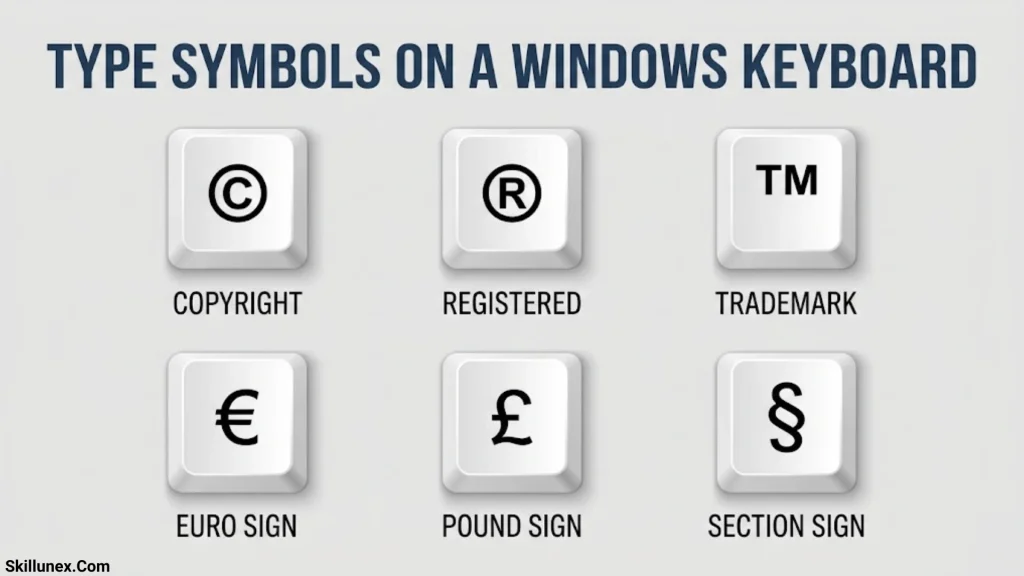
Windows provides several methods for typing symbols, including Shift shortcuts, Alt codes, the symbol panel, and Character Map. The best method depends on the symbol you need and the application you are using.
Use Shift to Type Common Keyboard Symbols
The easiest way to type many symbols is to hold down Shift while pressing a number or punctuation key. These shortcuts apply to a standard US keyboard layout.
| Symbol | Keyboard Shortcut |
| ! | Shift + 1 |
| @ | Shift + 2 |
| # | Shift + 3 |
| $ | Shift + 4 |
| % | Shift + 5 |
| ^ | Shift + 6 |
| & | Shift + 7 |
| * | Shift + 8 |
| ( | Shift + 9 |
| ) | Shift + 0 |
| _ | Shift + hyphen (-) |
| + | Shift + equals (=) |
| ? | Shift + forward slash (/) |
| : | Shift + semicolon (;) |
| “ | Shift + apostrophe (‘) |
| { | Shift + left bracket ([) |
| } | Shift + right bracket (]) |
To use a shortcut, hold Shift, press the corresponding key, and release both keys.
Important: Keyboard layouts differ by language and region. If a shortcut produces another character, check your selected keyboard layout in Windows settings.
Use Alt Codes to Type Special Symbols
Alt codes allow you to enter certain characters by holding the Alt key and typing a numeric code on the numeric keypad. This is especially helpful for symbols that are not printed on your keyboard.
Follow these steps:
- Place the cursor where you want the symbol.
- Enable Num Lock if your keyboard requires it.
- Hold down the Alt key.
- Enter the code using the numeric keypad.
- Release Alt to insert the character.
Here are commonly used Windows Alt codes:
| Symbol | Name | Alt Code |
| © | Copyright | Alt + 0169 |
| ® | Registered trademark | Alt + 0174 |
| ™ | Trademark | Alt + 0153 |
| ° | Degree | Alt + 0176 |
| ± | Plus-minus | Alt + 0177 |
| ÷ | Division | Alt + 0247 |
| × | Multiplication | Alt + 0215 |
| £ | British pound | Alt + 0163 |
| ¥ | Yen | Alt + 0165 |
| ¢ | Cent | Alt + 0162 |
| § | Section sign | Alt + 0167 |
| ¶ | Pilcrow | Alt + 0182 |
These are commonly used Windows code sequences, but support can vary by application and input configuration. Traditional Alt codes generally require a numeric keypad; typing the numbers from the top row may not produce the same result.
If you use a laptop without a dedicated numeric keypad, try the Windows symbol panel or Character Map instead.
Open the Windows Symbol Panel
The Windows symbol panel is one of the easiest ways to insert characters without memorizing codes.
- Open the application where you want to type.
- Press Windows + . (period).
- Open the symbols section of the panel.
- Browse the available categories or search where supported.
- Select the symbol to insert it.
Depending on your Windows version, the panel may include punctuation, currency symbols, mathematical characters, and other special characters.
This method is convenient for occasional use because it works in many text fields and does not require you to remember individual shortcuts.
Use Character Map to Find Uncommon Symbols
Character Map is a Windows utility that lets you browse characters supported by installed fonts.
To use it:
- Open the Start menu.
- Search for Character Map.
- Launch the utility.
- Select a font.
- Find and select the symbol you need.
- Click Select, followed by Copy.
- Paste the symbol into your document.
Character Map is useful when you need less common mathematical characters, technical notation, accented letters, or symbols that are difficult to find on a standard keyboard.
How to Type Symbols on a Mac Keyboard
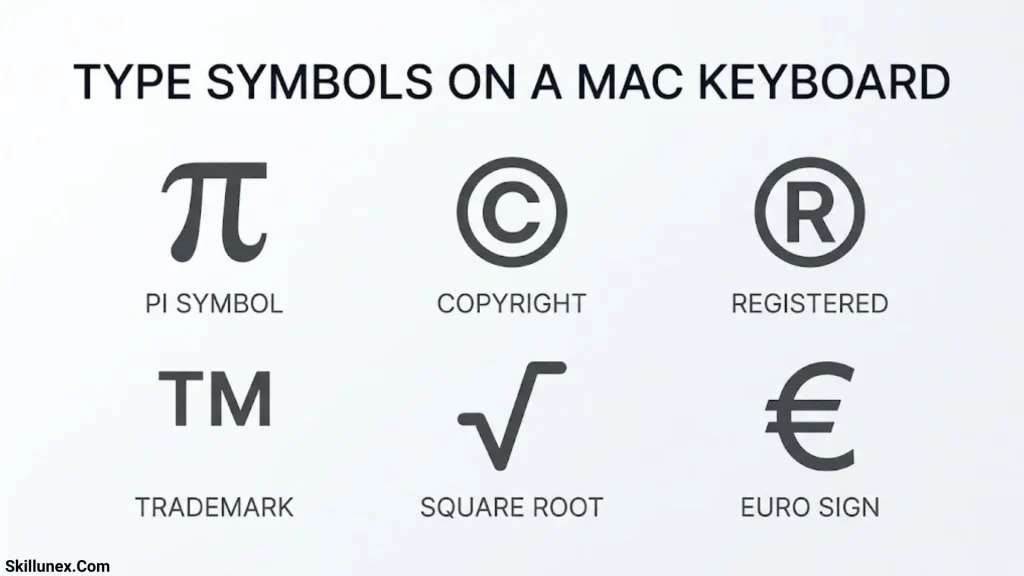
Mac computers offer built-in shortcuts and the Character Viewer for entering special characters. Some shortcuts differ from Windows, so it is important to use the correct method for macOS.
Use Option and Shift Shortcuts on Mac
The Option key, sometimes combined with Shift, can produce special characters on a standard US Mac keyboard layout.
| Symbol | Common Mac Shortcut |
| ™ | Option + 2 |
| € | Option + Shift + 2 |
| ° | Option + Shift + 8 |
| • | Option + 8 |
| © | Option + G |
| ® | Option + R |
| π | Option + P |
| ± | Option + Shift + = |
To type a symbol, hold the specified key combination and release it. The symbol should appear at the cursor position in a compatible application.
These shortcuts depend on your keyboard layout. If a combination does not work, use Character Viewer or check your current input source.
Use the Mac Character Viewer
Character Viewer provides access to a wide range of symbols, emoji, punctuation, and special characters.
Follow these steps:
- Open the application where you want to insert a symbol.
- Press Control + Command + Space in many macOS applications.
- Search for a term such as “copyright,” “arrow,” “degree,” or “infinity.”
- Select the character you want to insert.
Character Viewer is particularly useful for symbols that do not have a convenient keyboard shortcut.
Type Accented Letters and Alternative Characters
If you need accented letters such as é, è, ñ, or ü, macOS offers several input methods.
On supported keyboards and in compatible applications, pressing and holding a letter may display a menu of accented alternatives. You can then select the character you need.
You can also use the Character Viewer or change your keyboard input source to a layout that supports the characters you use most often.
How to Type Symbols on Android and iPhone
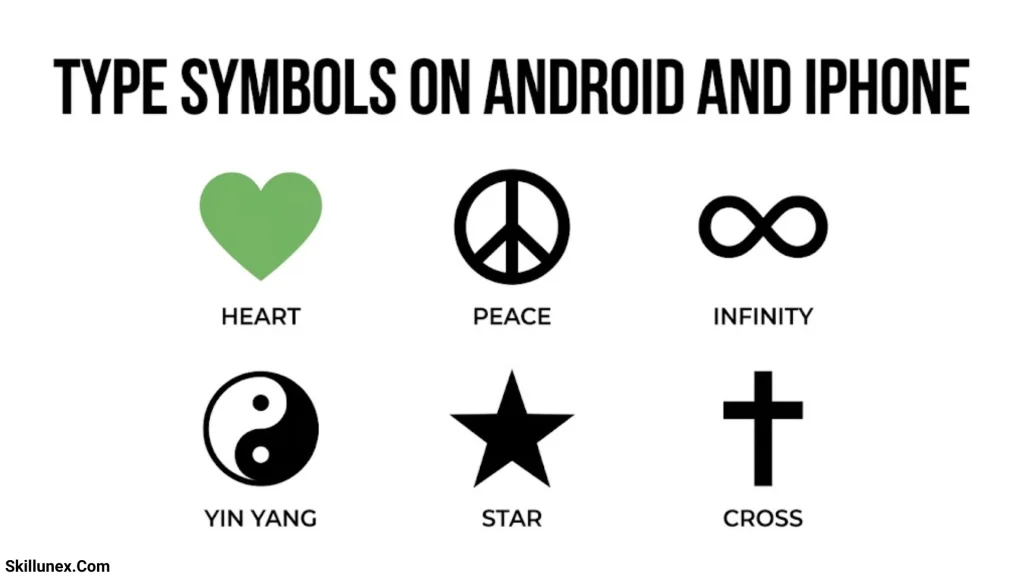
Mobile devices do not usually provide a physical keyboard with printed symbol keys. Instead, their on-screen keyboards include dedicated symbol screens and alternative characters.
Type Symbols on an Android Phone
Most Android keyboards, including Gboard, provide access to punctuation, numbers, and special characters.
- Open a messaging app, browser, or document.
- Tap the text field to display the keyboard.
- Tap ?123 or a similar key.
- Browse the symbols displayed.
- Tap the character you want to insert.
Some keyboards include a second symbols screen. Look for a key such as =\\< or another additional-symbol key, depending on the keyboard layout.
You can also press and hold certain keys to reveal alternative characters. The available symbols depend on your keyboard app, language, and settings.
Type Symbols on an iPhone or iPad
The standard iPhone and iPad keyboard includes separate screens for numbers and symbols.
To access them:
- Open an app and tap a text field.
- Tap 123 to open the numbers and symbols keyboard.
- Choose the symbol you need.
- Tap #+= or the corresponding additional-symbol key to view more characters when available.
The exact layout depends on your selected keyboard language and iOS or iPadOS version.
For uncommon symbols that do not appear on the keyboard, copying and pasting is often the quickest solution.
Create Shortcuts for Frequently Used Symbols on iPhone
If you frequently type the same special character, you can create a text replacement shortcut.
- Open Settings.
- Select General.
- Tap Keyboard.
- Open Text Replacement.
- Tap the add button.
- Enter your symbol in the Phrase field.
- Enter a memorable abbreviation in the Shortcut field.
- Save your settings.
For example, you could use ;copy as a shortcut for ©. Whenever you type the shortcut in a supported text field, your device may offer to replace it with the saved character.
Choose a shortcut that does not commonly appear in your normal writing.
How to Type Symbols in Microsoft Word and Google Docs
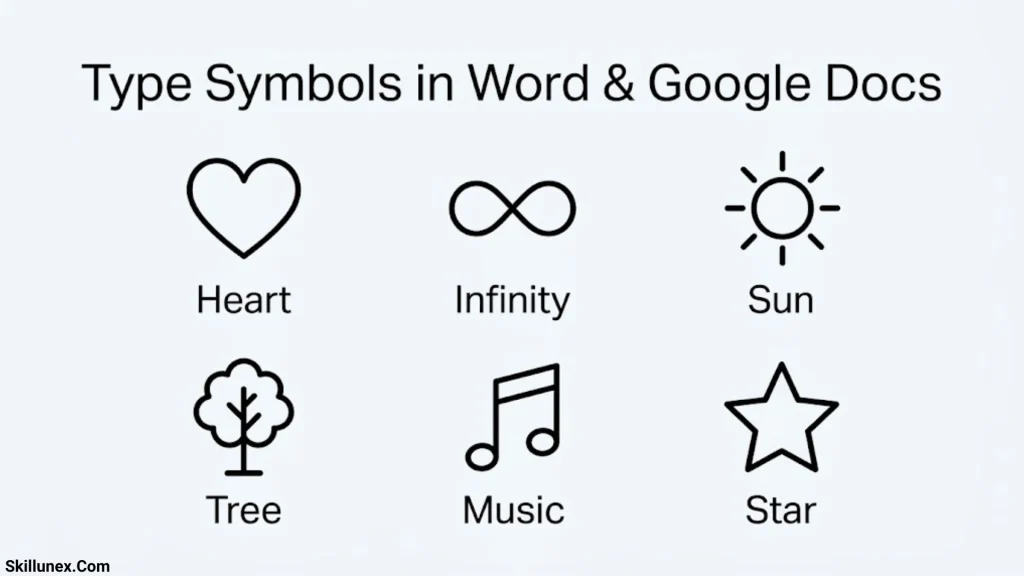
Word processors provide their own symbol tools, which can be more reliable than memorizing operating-system shortcuts when working with documents.
Insert Symbols in Microsoft Word
Microsoft Word includes a dedicated symbol menu.
- Open your document.
- Select the Insert tab.
- Click Symbol.
- Choose More Symbols if the character you need is not displayed.
- Select a font and locate the symbol.
- Click Insert.
This method is helpful for mathematical symbols, currency signs, arrows, Greek letters, and other characters.
The symbol menu also allows you to explore characters supported by different fonts.
Use Unicode Codes in Microsoft Word
Word supports Unicode hexadecimal conversion for many characters. To use it, type the hexadecimal code and immediately press Alt + X.
| Symbol | Unicode Code | What to Type in Word |
| © | U+00A9 | 00A9 then Alt + X |
| ® | U+00AE | 00AE then Alt + X |
| ™ | U+2122 | 2122 then Alt + X |
| € | U+20AC | 20AC then Alt + X |
| ∞ | U+221E | 221E then Alt + X |
| √ | U+221A | 221A then Alt + X |
| ≠ | U+2260 | 2260 then Alt + X |
| ≤ | U+2264 | 2264 then Alt + X |
| ≥ | U+2265 | 2265 then Alt + X |
| → | U+2192 | 2192 then Alt + X |
| ✓ | U+2713 | 2713 then Alt + X |
For example, type 00A9 and press Alt + X. Word should convert the code to ©.
If conversion fails, make sure the cursor is immediately after the code and that you are using a compatible version of Word. Characters immediately before or after the code can sometimes affect conversion.
Insert Symbols in Google Docs
Google Docs offers a special-character tool that works directly in your document.
- Open a Google Docs document.
- Click Insert.
- Select Special characters.
- Browse the categories or search for a character by name.
- Click the desired symbol to insert it.
You can search for terms such as “copyright,” “currency,” “infinity,” “arrow,” or “square root.”
Some versions of the tool also let you draw a character to help identify it. This can be useful when you recognize the shape of a symbol but do not know its name.
How to Type Common Special Symbols
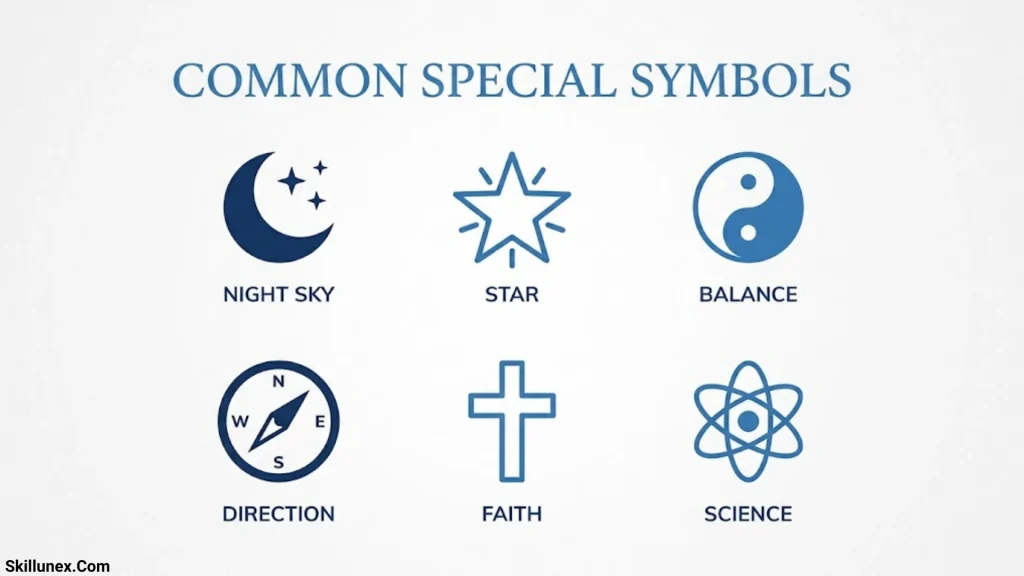
Different symbols serve different purposes. Understanding their names and uses makes it easier to find the right character for your document.
Copyright, Trademark, and Registered Symbols
The copyright and trademark symbols are frequently used in business documents, websites, product descriptions, and legal notices.
| Symbol | Name | Common Use |
| © | Copyright | Copyright notices |
| ™ | Trademark | Trademark identification |
| ® | Registered trademark | Identification of a registered trademark |
For example, a copyright notice may appear as © 2026 Example Company.
On Windows, you can use the appropriate Alt code or symbol panel. On Mac, you can use the common US-layout shortcuts listed earlier. Word and Google Docs also offer symbol-insertion tools.
The symbols have different meanings, so they should not be treated as interchangeable.
Currency Symbols
Currency symbols help identify the currency used in a price or financial document.
| Symbol | Currency | Example |
| $ | Dollar currencies | $25 |
| € | Euro | €25 |
| £ | British pound | £25 |
| ¥ | Japanese yen or Chinese yuan, depending on context | ¥500 |
| ₹ | Indian rupee | ₹500 |
| ₩ | South Korean won | ₩5,000 |
| ₱ | Philippine peso | ₱500 |
| ¢ | Cent | 50¢ |
The same symbol can refer to different currencies in different contexts. For financial documents, identify the currency clearly when confusion is possible.
If a currency sign is missing from your keyboard, use the symbol picker, Character Map, or the special-character menu in your word processor.
Mathematical Symbols
Mathematical symbols make calculations, equations, and scientific explanations easier to read.
| Symbol | Name | Example |
| + | Plus | 5 + 3 = 8 |
| − | Minus | 9 − 4 = 5 |
| × | Multiplication | 4 × 3 = 12 |
| ÷ | Division | 12 ÷ 3 = 4 |
| = | Equal to | 2 + 2 = 4 |
| ≠ | Not equal to | 5 ≠ 7 |
| ≈ | Approximately equal to | π ≈ 3.14 |
| ≤ | Less than or equal to | x ≤ 10 |
| ≥ | Greater than or equal to | x ≥ 5 |
| √ | Square root | √25 = 5 |
| ∞ | Infinity | An unbounded quantity |
| π | Pi | π ≈ 3.14159 |
Many mathematical symbols are not printed on standard keyboards. You can insert them through Word, Google Docs, Character Map, or another compatible symbol tool.
Arrow Symbols
Arrow symbols are useful for indicating directions, relationships, steps, and processes.
| Symbol | Common Meaning |
| ← | Left arrow |
| → | Right arrow |
| ↑ | Up arrow |
| ↓ | Down arrow |
| ↔ | Left-right arrow |
| ⇒ | Implies or leads to |
| ⇐ | Implied by or points left |
| ⇔ | If and only if in suitable mathematical contexts |
| ↗ | Up-right arrow |
| ↘ | Down-right arrow |
You can use arrows in presentations, flowcharts, educational materials, instructions, and technical documents.
For uncommon arrow styles, search for “arrow” in your operating system’s character picker or document editor.
Check Marks, Crosses, and Box Symbols
Check marks are often used in checklists, forms, task managers, and presentations.
| Symbol | Common Meaning |
| ✓ | Check mark |
| ✔ | Heavy check mark |
| ☑ | Checked box |
| ☐ | Empty box |
| ✗ | Cross mark |
| ✘ | Heavy cross mark |
| ☒ | Box with an X |
These characters may look slightly different across devices because of font and rendering differences. If you need a consistent appearance in a professional document, check the final formatting before publishing or printing it.
Degree, Temperature, and Measurement Symbols
Measurement symbols are important in scientific writing, cooking instructions, technical documents, and everyday communication.
| Symbol | Name or Use | Example |
| ° | Degree | 90° |
| ℃ | Degree Celsius sign | 25℃ |
| ℉ | Degree Fahrenheit sign | 77℉ |
| µ | Micro sign | 10 µm |
| ± | Plus-minus | 5 ± 1 |
| ′ | Prime; used in some measurement notation | 30′ |
| ″ | Double prime; used in some measurement notation | 12″ |
In ordinary temperature writing, formats such as 25°C and 77°F are widely used. Use the appropriate character and follow the style required by your document or field.
How to Type Symbols Using Unicode
Unicode is a character-encoding standard that assigns a unique code point to each character it represents. It allows text and symbols to be stored and exchanged across different operating systems and applications.
Common Unicode Codes for Special Symbols
The following table shows several useful Unicode code points.
| Symbol | Name | Unicode Code Point |
| © | Copyright | U+00A9 |
| ® | Registered trademark | U+00AE |
| ™ | Trademark | U+2122 |
| € | Euro | U+20AC |
| ₹ | Indian rupee | U+20B9 |
| ∞ | Infinity | U+221E |
| √ | Square root | U+221A |
| ≠ | Not equal to | U+2260 |
| ✓ | Check mark | U+2713 |
| → | Right arrow | U+2192 |
| ♥ | Heart | U+2665 |
| ★ | Black star | U+2605 |
Does a Unicode Code Work as a Keyboard Shortcut?
Not by itself. A Unicode code point identifies a character, but the method used to enter that character depends on your operating system and application.
For example, Microsoft Word supports typing a hexadecimal code followed by Alt + X for many characters. Windows users can also use the symbol panel or Character Map, while Mac users can use Character Viewer.
Do not assume that typing a Unicode code such as U+221E directly into any text field will automatically produce ∞. Use an input method supported by your device or application.
How to Copy and Paste Symbols Quickly
Copying and pasting is one of the simplest ways to type uncommon symbols when you do not know their keyboard shortcuts.
Steps to Copy and Paste Symbols
- Find the symbol in a trusted source or symbol list.
- Select the character.
- Press Ctrl + C on Windows or Command + C on Mac.
- Place the cursor where you want the symbol.
- Press Ctrl + V on Windows or Command + V on Mac.
On a phone or tablet, press and hold the character and select the copy option. Then press and hold the destination text field and choose Paste.
Ready-to-Copy Symbol Collection
You can copy these characters directly into a document, email, website, or message.
General symbols: © ® ™ § ¶ † ‡ • …
Currency symbols: $ € £ ¥ ₹ ₩ ₱ ¢
Mathematical symbols: ± × ÷ ≠ ≈ ≤ ≥ √ ∞ ∑ π
Arrow symbols: ← → ↑ ↓ ↔ ⇒ ⇐ ⇔ ↗ ↘
Check marks and boxes: ✓ ✔ ☑ ☐ ✗ ✘ ☒
Stars and hearts: ★ ☆ ♥ ♡
Weather and temperature: ° ℃ ℉ ☀ ☂
Punctuation: — – … « » ‘ ’ “ ”
Some symbols may not display correctly in older applications or unsupported fonts. If a character appears as an empty box, try a different font or insert the symbol through another application.
How to Fix Common Problems When Typing Symbols

Even when you use the correct method, symbols may not appear as expected. The following solutions address common issues.
A Keyboard Shortcut Produces the Wrong Symbol
This usually happens because your selected keyboard layout differs from the layout used in the shortcut instructions.
How to fix it:
- Check your active keyboard language.
- Confirm whether you are using a US, UK, or another regional layout.
- Try the symbol panel or Character Viewer instead of a shortcut.
- Check the application’s keyboard shortcut settings if the problem occurs only in one program.
Alt Codes Do Not Work
Alt codes may fail because your keyboard lacks a numeric keypad, Num Lock is disabled, or the application does not support the particular input method.
How to fix it:
- Enable Num Lock when required.
- Use the numeric keypad rather than the top-row numbers.
- Check whether your laptop has an embedded numeric keypad.
- Try the Windows symbol panel or Character Map.
- Use the Insert Symbol feature in your document editor.
A Symbol Appears as a Box or Question Mark
A missing-character box usually indicates that the selected font or application cannot display the character correctly.
How to fix it:
- Switch to a font with broader character support.
- Try inserting the character through a different application.
- Update the application if it is outdated.
- Check whether the destination platform supports the symbol.
A Symbol Changes After Copying and Pasting
Some applications automatically replace punctuation, apply formatting, or substitute characters.
How to fix it:
- Use the application’s paste-as-plain-text option, if available.
- Insert the symbol directly through the application’s symbol menu.
- Check the formatting and font after pasting.
- Avoid copying symbols from sources that may contain unwanted formatting.
Symbols Look Different on Different Devices
A Unicode character can have different visual designs across fonts, operating systems, and applications. This is normal for many symbols.
If consistent appearance matters, select a suitable font and check the final document on the device or platform where it will be viewed.
Frequently Asked Questions
How do I type special symbols on a keyboard?
Use Shift with the appropriate key for common symbols. For less common characters, use the Windows symbol panel, Mac Character Viewer, a mobile symbols keyboard, or the symbol menu in Word or Google Docs.
How do I type the copyright symbol ©?
On many Windows systems, use Alt + 0169 with the numeric keypad. On a Mac with a standard US keyboard layout, press Option + G. You can also copy © or insert it through a character picker.
How do I type the degree symbol °?
On Windows, try Alt + 0176 using the numeric keypad. On a Mac with a standard US keyboard layout, press Option + Shift + 8. You can also find the character through your device’s symbol menu.
How do I type the euro symbol €?
The shortcut depends on your keyboard layout. On a Mac with a standard US layout, Option + Shift + 2 commonly produces €. On Windows, use the symbol panel, Character Map, or a compatible currency shortcut for your selected layout.
How do I type symbols on a laptop without a numeric keypad?
Use Windows + . to open the Windows symbol panel, search Character Map, or insert the character through Word or Google Docs. These methods do not require memorizing traditional Alt codes.
Can I type symbols on a mobile phone?
Yes. Tap the ?123 or 123 key to open the symbols keyboard. For uncommon characters, try pressing and holding keys, using a text replacement shortcut, or copying and pasting the symbol.
What is the easiest way to type uncommon symbols?
The easiest method for most people is to search the built-in character picker. Windows provides Character Map and a symbol panel, macOS offers Character Viewer, and Word and Google Docs provide dedicated symbol-insertion tools.
Why does my keyboard type a different symbol than expected?
Your keyboard layout or input language may differ from the one assumed by the shortcut. Check the selected layout in your device settings and use the relevant shortcut for that layout.
Can I use Unicode codes to type symbols in every application?
No. Unicode codes identify characters, but the method for entering them varies by operating system and application. For example, Word supports hexadecimal codes followed by Alt + X for many characters, while other applications may require a symbol picker.
Conclusion
Knowing how to type symbols on a keyboard makes everyday writing, professional documents, academic assignments, and digital communication easier. Common symbols can often be entered with Shift shortcuts, while less common characters are available through Alt codes, Unicode input, character pickers, and copy and paste methods.
For Windows users, the symbol panel and Character Map are useful alternatives to memorizing codes. Mac users can rely on keyboard shortcuts and Character Viewer, while Android and iPhone users can access symbols through their on screen keyboards.
Choose the method that works best for your device and the application you use most often. Once you become familiar with these tools, you can insert almost any commonly needed symbol quickly and accurately.

I’m Adrian Holloway, a writer and researcher who enjoys exploring the stories, meanings, and interesting facts behind the subjects people search for every day. I’m especially interested in symbols, nature, lakes, places, and cultural topics that help readers understand the world from a different perspective.
I believe useful content should be simple, accurate, and enjoyable to read. When I research a topic, I focus on finding meaningful details and presenting them in a way that makes information easy to understand.
My goal is to create helpful articles that answer real questions while encouraging readers to discover something new with every visit.
Books by Adrian Holloway
The Language of Symbols: Meanings, Stories & Traditions
Hidden Wonders of Nature: Lakes, Landscapes & Discovery