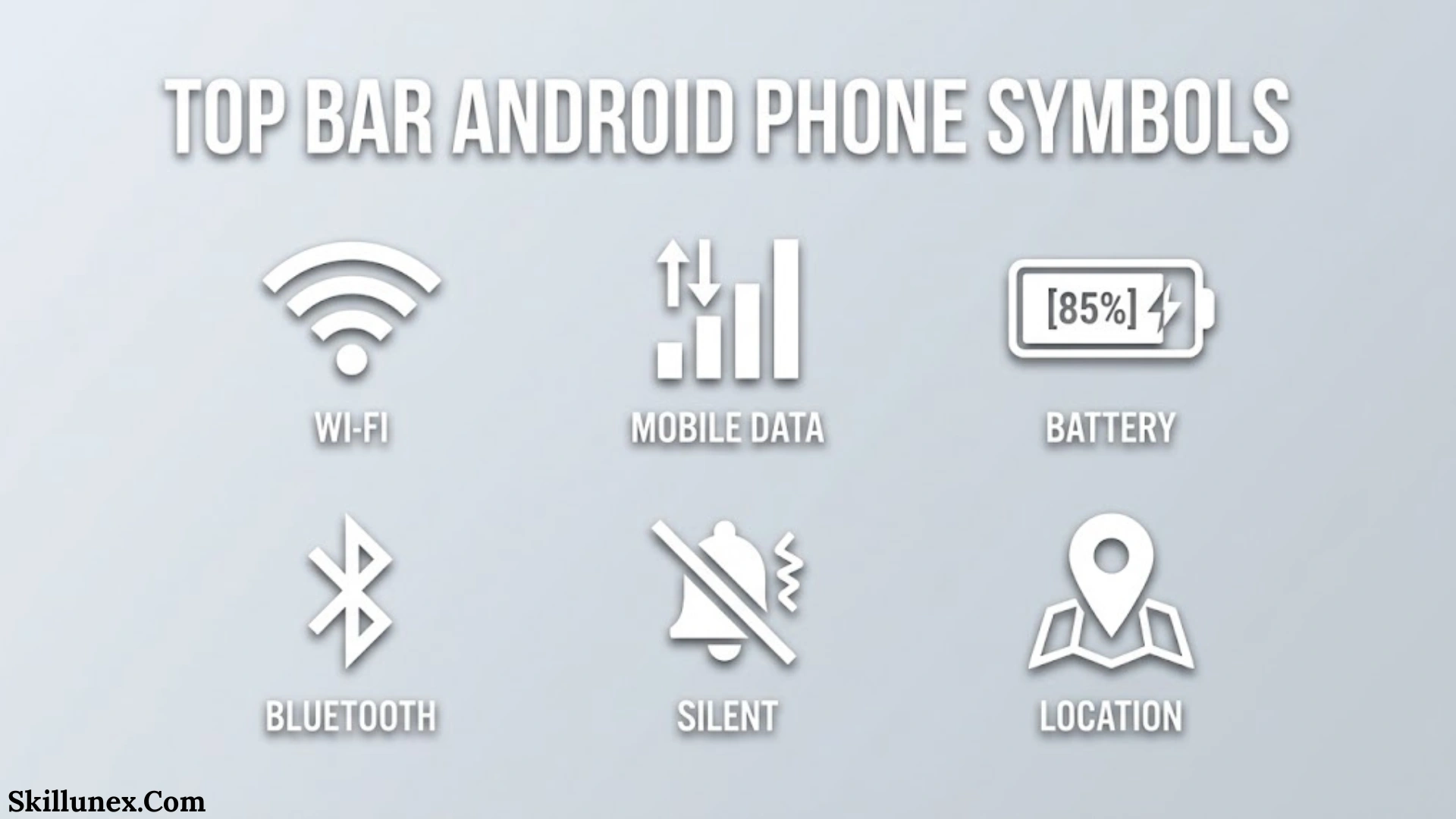
The top bar of an Android phone contains several small symbols that provide important information about your device’s activity, connectivity, battery, notifications, and security. Known as the Android status bar, this area helps you understand what is happening on your smartphone without opening multiple applications or navigating through settings.
You may recognize common symbols such as Wi Fi, mobile network signal, battery, Bluetooth, and airplane mode. However, Android also displays less familiar icons, including a key, eye, green dot, shield, location arrow, VPN indicator, and various application notification symbols.
If you have ever noticed an unfamiliar icon at the top of your screen and wondered what it means, this guide will help you identify it.
In this comprehensive article, we explain top bar Android phone symbols and their meanings, including system icons, notification indicators, privacy symbols, network symbols, and manufacturer-specific icons. We also explain how to identify unknown symbols, manage status bar notifications, and troubleshoot icons that remain visible unexpectedly.
What Is the Top Bar on an Android Phone?
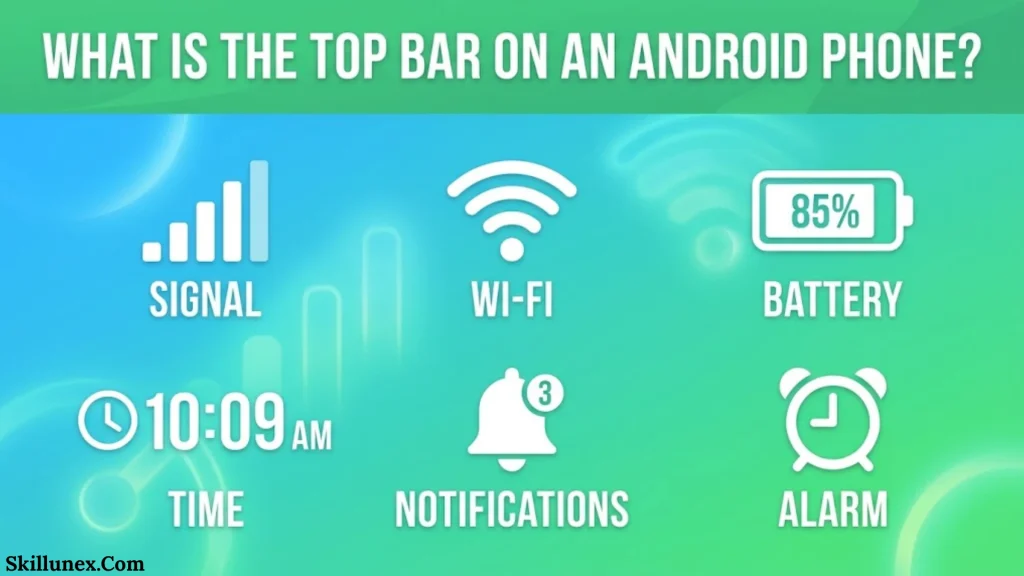
The top bar on an Android smartphone is officially called the status bar. It is located at the upper edge of the screen and displays small icons, indicators, and information about your device.
The status bar provides an overview of your phone’s current condition, including:
- Remaining battery power.
- Mobile network signal strength.
- Wi-Fi connection status.
- Bluetooth connectivity.
- Current time.
- Active alarms.
- Location services.
- VPN connections.
- Incoming notifications.
- Privacy indicators for camera and microphone access.
The status bar generally contains two categories of icons:
1. System status icons: These indicate whether particular phone features or services are active. Examples include Wi-Fi, Bluetooth, battery saver, airplane mode, and mobile data.
2. Notification icons: These alert you about activities from applications and services, such as incoming messages, missed calls, downloads, emails, and app updates.
The exact appearance and position of these symbols can differ depending on your Android version, screen layout, and smartphone manufacturer.
Top Bar Android Phone Symbols and Their Meanings
Android smartphones display different symbols to communicate information about their current settings and activities. Understanding these icons helps you recognize connectivity problems, manage notifications, and identify which features are running.
Below are the most common Android status bar symbols and their meanings.
Battery Symbol
The battery symbol displays the remaining power available on your smartphone. It usually appears in the upper-right corner of the status bar.
Different battery indicators communicate different conditions:
- Full battery: Your phone has sufficient battery power.
- Partially filled battery: Shows the approximate remaining charge.
- Battery with lightning bolt: Your phone is charging.
- Red battery: Usually indicates critically low battery power.
- Battery with percentage: Displays the remaining battery level numerically.
- Battery saver indicator: Indicates that a power-saving feature is enabled.
Some Android devices display a battery percentage directly inside or beside the battery icon.
To check the exact battery percentage, open Settings, select Battery, and look for battery information.
Wi-Fi Symbol
The Wi-Fi symbol looks like curved lines arranged above a small dot. It indicates your phone’s wireless network connection.
Different Wi-Fi indicators can mean:
- Wi-Fi symbol: Wi-Fi is enabled or connected, depending on the device.
- Wi-Fi with signal strength: Indicates the strength of your wireless connection.
- Wi-Fi with an exclamation mark: May indicate that the network has limited or no internet access.
- Wi-Fi with a question mark: On some devices, this may indicate a connection or network identification issue.
Remember that connecting to Wi-Fi does not always mean you have internet access. Your phone may remain connected to a router even when the internet service is unavailable.
Mobile Network Signal Bars
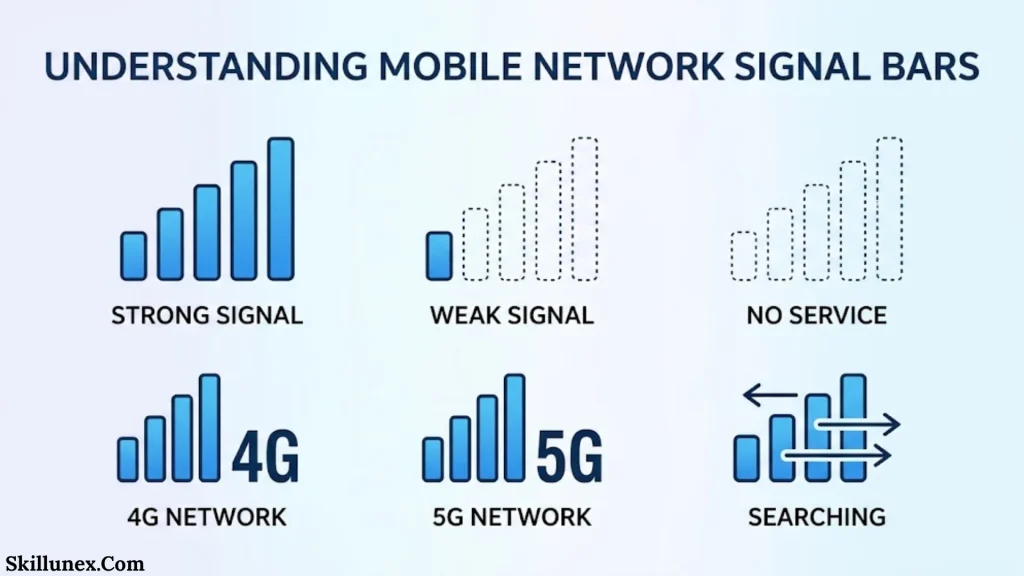
The mobile network signal icon consists of several vertical bars that represent cellular signal strength.
The number of filled bars generally indicates how strong your mobile network connection is.
- All bars filled: Strong cellular signal.
- Two or three bars: Moderate signal strength.
- One bar: Weak cellular signal.
- Empty signal indicator: Very weak or unavailable network connection.
- Signal icon with an X: May indicate that your phone cannot connect to the cellular network.
Weak network signals can affect call quality, mobile internet speed, and message delivery.
If your signal remains weak, try moving to another location, checking your SIM card, or contacting your mobile network provider.
2G, 3G, 4G, LTE, and 5G Symbols
These symbols identify the cellular network technology your Android phone is currently using.
| Symbol | Meaning |
| 2G | Second-generation mobile network |
| 3G | Third-generation mobile network |
| 4G | Fourth-generation mobile network |
| LTE | Long-Term Evolution mobile technology |
| 4G+ | Enhanced 4G connectivity |
| 5G | Fifth-generation mobile network |
| 5G+ | Enhanced or higher-capacity 5G service, depending on the carrier |
| VoLTE | Voice calls over an LTE network |
The network symbol may change when you move between locations or when your carrier switches your phone to a different network technology.
The availability of 4G, 5G, and VoLTE depends on your device, SIM card, carrier, and network coverage.
Mobile Data Symbol
The mobile data icon indicates that your phone is using or has enabled cellular internet connectivity.
Depending on your device, you may see small arrows, network labels, or other indicators alongside the mobile signal symbol.
Mobile data allows you to access the internet without connecting to Wi-Fi.
You can manage this feature by opening Settings, selecting Network and Internet or Connections, and choosing Mobile Data.
Bluetooth Symbol
The Bluetooth symbol resembles an angular letter B. It indicates that Bluetooth functionality is enabled on your Android device.
Bluetooth allows your phone to connect wirelessly with compatible accessories and devices, including:
- Wireless headphones.
- Bluetooth speakers.
- Smartwatches.
- Wireless keyboards.
- Car audio systems.
- Other smartphones.
On some Android phones, the Bluetooth icon remains visible whenever Bluetooth is enabled. On others, it may appear only when a device is connected or when Bluetooth is actively being used.
Airplane Mode Symbol
The airplane mode icon looks like a small airplane.
When airplane mode is activated, your phone generally disables cellular connections, including mobile calls and mobile data.
However, you can usually turn Wi-Fi and Bluetooth back on manually while airplane mode remains active.
This feature is useful when travelling by airplane, troubleshooting cellular connectivity, or temporarily disconnecting from mobile networks.
Location or GPS Symbol
The location symbol generally looks like a small pin, arrow, or navigation marker.
It indicates that a location-related service is being accessed.
Applications that commonly use location services include:
- Google Maps.
- Weather applications.
- Ride-sharing services.
- Navigation apps.
- Fitness applications.
- Location-sharing services.
On newer Android versions, a location indicator may appear when an app accesses your device’s location.
If you want to control location access, open Settings, select Location, and review which applications have permission to use it.
Do Not Disturb Symbol
The Do Not Disturb symbol usually resembles a circle with a horizontal line or another manufacturer-specific indicator.
It means that Do Not Disturb mode is active.
This feature helps reduce interruptions by silencing or restricting notifications, calls, and alerts.
You can customize which contacts, applications, and alarms are allowed to interrupt you.
To disable this feature, open Quick Settings and tap the Do Not Disturb button.
Alarm Clock Symbol
The alarm clock icon indicates that an alarm has been scheduled on your device.
It may appear when you set an alarm through the Clock application.
Depending on your Android phone, the symbol may remain visible until the alarm is disabled or removed.
You can check your scheduled alarms by opening the Clock app.
Battery Saver Symbol
The battery saver symbol indicates that your smartphone’s power-saving mode is enabled.
Battery Saver helps extend battery life by reducing certain background activities and limiting power-intensive features.
Depending on your device, it may restrict:
- Background application activity.
- Automatic synchronization.
- Certain visual effects.
- Background location access.
- Performance-intensive processes.
You can manage Battery Saver through Settings > Battery.
NFC Symbol
NFC stands for Near Field Communication.
Some Android devices display an NFC indicator when the feature is enabled.
NFC allows compatible devices to exchange information over very short distances.
It is commonly used for:
- Contactless payments.
- Digital access cards.
- Compatible device pairing.
- Sharing information between supported devices.
The NFC icon does not appear on every Android phone, even when NFC is supported.
VPN Key Symbol
A small key-shaped icon at the top of an Android phone commonly indicates an active VPN connection.
A Virtual Private Network (VPN) creates an encrypted connection between your device and a VPN server.
VPN applications are often used to improve connection privacy, access private networks, and protect data when using certain public networks.
If you see the key symbol unexpectedly, open Settings > Network and Internet > VPN or search for VPN in your phone’s settings.
Hotspot Symbol
The hotspot symbol indicates that your phone’s mobile hotspot feature is enabled.
A mobile hotspot allows other devices to connect to your phone’s internet connection through Wi-Fi.
For example, you can share your mobile data with:
- Laptops.
- Tablets.
- Other smartphones.
- Compatible wireless devices.
Remember that using a hotspot can consume significant mobile data and battery power.
NFC, Screen Casting, and Connected Device Indicators
Some Android devices display additional symbols when wireless sharing or device connection features are active.
For example:
- A screen casting icon indicates that your display may be connected to a compatible external screen.
- A connected device indicator may represent an active connection with another device.
- A nearby sharing indicator may appear during supported sharing activities.
These icons vary considerably between Android manufacturers.
Android Notification Bar Symbols and Their Meanings
The status bar does not only display phone settings. It also provides notifications from installed applications.
When an app receives a new notification, Android may display its small icon in the top bar.
Here are some common examples.
WhatsApp Notification Symbol
The WhatsApp icon indicates a notification from WhatsApp.
It may appear when someone sends you a message, calls you, or when a group conversation receives a new message.
Gmail Notification Symbol
The Gmail icon indicates that you have received an email notification.
Depending on your settings, it may appear when a new email arrives in your inbox.
Missed Call Symbol
A phone receiver or missed-call indicator usually means that someone attempted to call you while you were unavailable.
You can check the Phone app to see the caller’s information.
Text Message Symbol
A messaging icon indicates that you have received a new SMS or another message notification.
The exact symbol depends on which messaging application you use.
Download Symbol
A downward pointing arrow usually indicates that a file, application, or other content is downloading.
You can check the notification panel to view download progress.
Upload Symbol
An upward-pointing arrow may indicate that your phone is uploading information.
For example, this can happen when uploading photos, documents, or other files to cloud storage.
Screenshot Symbol
A screenshot-related icon or notification may appear after you capture your screen.
It usually disappears after the notification is dismissed.
Google Play Store Symbol
The Google Play Store icon may appear when an application is being downloaded, installed, updated, or when the store sends a notification.
System Update Symbol
An update-related icon indicates that your phone has detected, downloaded, or is installing a software update.
The exact meaning depends on the notification displayed.
Android Privacy and Security Symbols
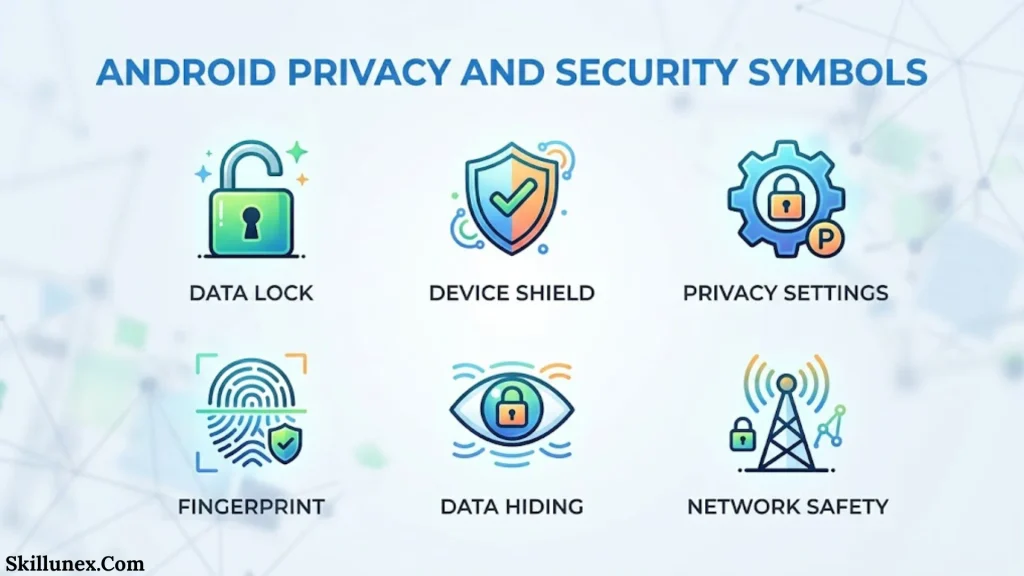
Modern Android phones display special indicators to help users understand when sensitive device features are being accessed.
These indicators are particularly important because they provide information about camera, microphone, and other privacy-related activities.
Green Dot Symbol
A green dot near the top-right corner of supported Android phones indicates that an application is using the camera or microphone.
For example, it may appear when:
- Recording a video.
- Taking a photograph.
- Making a voice call.
- Recording audio.
- Using a video conferencing application.
You can swipe down to access the notification panel or privacy controls and check which application is using these permissions.
Orange or Microphone Indicator
Some Android interfaces use an orange microphone indicator or a microphone-shaped icon to show microphone activity.
The exact appearance depends on the Android version and manufacturer.
If you are concerned about microphone access, review the microphone permission settings for your applications.
Camera Indicator
A camera indicator appears when an application is accessing your camera on supported Android devices.
This helps you identify camera activity even when the application is running in the background or displaying another screen.
Shield Symbol
A shield-shaped symbol may represent a security feature, device protection service, privacy control, or security-related notification.
Its exact meaning depends on the manufacturer and application displaying it.
Do not assume that every shield icon has the same meaning across Android devices.
Eye Symbol
An eye-shaped symbol can represent different features depending on the phone brand.
It may be associated with eye comfort, screen attention, smart display features, or an application-specific function.
To identify it correctly, check your phone’s display settings and the notification panel.
Android Status Bar Symbols on Different Phone Brands
Not every Android smartphone uses identical status bar symbols.
Manufacturers customize the Android interface to provide their own visual design and additional features.
Samsung Galaxy Phones
Samsung Galaxy smartphones use One UI, which includes customized status bar icons.
Common indicators include:
- Battery and charging symbols.
- Wi-Fi and mobile network indicators.
- Bluetooth.
- NFC.
- Location services.
- Do Not Disturb.
- Privacy indicators.
Samsung users can also manage selected status bar icons through supported settings and customization options.
Xiaomi and Redmi Phones
Xiaomi and Redmi smartphones use HyperOS or older MIUI interfaces.
Their status bars may display network speed, dual-SIM indicators, battery information, hotspot activity, and other connectivity symbols.
Some icons may appear differently depending on the device and software version.
Oppo and Realme Phones
Oppo and Realme smartphones use their respective Android-based interfaces.
They may include additional icons for battery management, screen recording, hotspot sharing, privacy features, and device connectivity.
Vivo Phones
Vivo smartphones use Funtouch OS or OriginOS, depending on the market and device.
Their status bar icons may include customized network, notification, battery, and privacy indicators.
Google Pixel Phones
Google Pixel devices generally follow Google’s Android interface.
They display familiar Android system icons, including Wi-Fi, mobile signal, battery, Bluetooth, VPN, and privacy indicators.
How to Identify an Unknown Symbol at the Top of Your Android Phone
Sometimes, you may notice a symbol that does not match any familiar Android icon.
Instead of guessing its meaning, follow these steps to identify it.
Open the Notification Panel
Swipe down from the top of your screen.
The expanded notification panel may reveal which application or service is responsible for the symbol.
Check Quick Settings
Swipe down again to open Quick Settings.
Look for active features such as:
- Bluetooth.
- Wi-Fi.
- Location.
- Airplane mode.
- Battery Saver.
- Do Not Disturb.
- Hotspot.
If an unfamiliar symbol is related to one of these features, you may be able to identify it here.
Check Application Notifications
Some symbols are generated by installed applications.
Check your recent notifications to identify whether an app is displaying the icon.
You can also visit Settings > Notifications > App Notifications to review notification activity. Menu names may differ between Android devices.
Check Privacy Settings
If the unfamiliar icon looks like a camera, microphone, or location indicator, review your privacy settings.
Open Settings and look for Privacy or Permission Manager.
You can check which applications have access to sensitive features.
Search Using Your Phone Model
If you still cannot identify the symbol, search online using your smartphone’s brand and model.
For example, search for:
“Unknown status bar symbol on Samsung Galaxy A55.”
This can help you find device-specific explanations.
How to Hide or Remove Android Status Bar Symbols
Some users prefer a clean status bar without unnecessary icons.
Although Android does not provide a universal option to hide every symbol, you can manage several indicators.
Turn Off Unnecessary Features
If a symbol represents an active feature, disabling that feature may remove its indicator.
For example:
- Turn off Bluetooth if you are not using it.
- Disable the hotspot when you finish sharing your internet.
- Turn off Location when it is unnecessary.
- Disable Battery Saver when you no longer need it.
- Disconnect an active VPN if you do not need it.
Manage Application Notifications
If an application displays unnecessary notification icons, you can change its notification settings.
Follow these steps:
- Open Settings.
- Select Notifications.
- Open App Notifications.
- Choose the application.
- Disable unwanted notification categories.
Be careful not to disable important notifications, such as security alerts or banking notifications.
Customize Status Bar Icons
Some manufacturers provide options to control which icons appear in the status bar.
For example, certain Samsung devices offer status bar customization through Settings or Good Lock modules.
Other manufacturers may provide similar options through their own customization tools.
The availability of these features depends on your phone model and Android version.
Why Are Some Android Status Bar Symbols Missing?
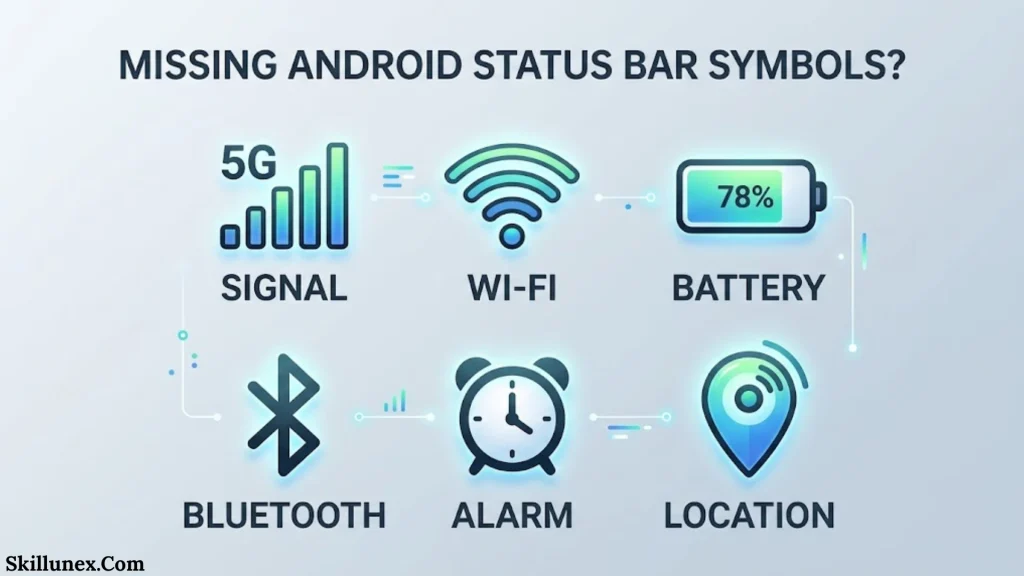
Sometimes, an expected icon may not appear at the top of your phone.
There are several possible reasons.
Different Android versions: Newer Android versions may change how certain icons are displayed.
Manufacturer customization: Samsung, Xiaomi, Oppo, and other brands use different status bar designs.
Limited screen space: Some phones hide or group notification icons when too many notifications are present.
Feature is disabled: A Bluetooth, Wi-Fi, or other indicator may disappear when its related feature is turned off.
Application settings: Some applications do not display persistent notification icons.
Display customization: Certain themes and interface settings may change the appearance of status bar elements.
A missing icon does not necessarily mean that the related feature is unavailable or malfunctioning.
Frequently Asked Questions About Top Bar Android Phone Symbols
What are the symbols at the top of my Android phone?
The symbols at the top of your Android phone are called status bar icons. They provide information about battery power, Wi-Fi, mobile network connectivity, Bluetooth, location, notifications, and other active features.
What does the small key symbol mean on Android?
A small key symbol usually indicates that a VPN connection is active. It may appear when you connect to a VPN application or configure a VPN service through your phone’s settings.
What does the N symbol mean on Android?
The N-shaped symbol commonly indicates that NFC is enabled. NFC allows compatible devices to communicate over short distances and supports features such as contactless payments.
What does the green dot at the top of my Android phone mean?
A green dot on supported Android devices indicates that an application is accessing your camera or microphone. You can check the privacy controls to identify which application is using these features.
What does the eye symbol mean on Android?
The eye symbol can represent different features depending on your phone manufacturer. It may indicate eye comfort, screen attention, or a smart display feature.
What does a circle with a line mean on Android?
A circle with a horizontal line commonly represents Do Not Disturb mode. When enabled, it restricts interruptions from calls, messages, and notifications according to your settings.
What does the airplane symbol mean on my phone?
The airplane symbol indicates that airplane mode is enabled. This mode generally disables cellular connections, although Wi-Fi and Bluetooth can usually be activated manually.
What does the exclamation mark on the Wi-Fi symbol mean?
An exclamation mark beside the Wi-Fi symbol generally indicates that your phone is connected to a wireless network with limited or no internet access.
Why is there a location symbol at the top of my phone?
The location symbol indicates that a location-related service is being accessed. Applications such as Google Maps, weather apps, and navigation services commonly use location information.
Can I see all Android status bar symbols in one place?
Android does not provide one universal list of every possible status bar icon. You can identify many of them through your notification panel, Quick Settings, phone settings, and your manufacturer’s support documentation.
Why do Android symbols look different on Samsung and Xiaomi phones?
Different manufacturers customize the Android interface. Samsung uses One UI, while Xiaomi uses HyperOS. These interfaces can change icon designs, layouts, and available status bar customization options.
How do I remove an unwanted symbol from my Android status bar?
First, identify which feature or application is displaying the symbol. You can then disable the relevant feature, change notification settings, or use your phone’s available status bar customization options.
Conclusion
Understanding top bar Android phone symbols makes it easier to monitor your smartphone’s activity, connectivity, battery status, and privacy settings. From familiar indicators such as Wi Fi, Bluetooth, and mobile network signals to less common symbols such as VPN keys, green privacy dots, NFC, and notification icons, every indicator provides useful information.
Although Android manufacturers use different designs, most status bar symbols serve similar purposes across devices. Learning their meanings can help you identify connectivity issues, manage notifications, protect your privacy, and use your smartphone more confidently.If you encounter an unfamiliar icon, check your notification panel and device settings before assuming that something is wrong with your phone.

I’m Adrian Holloway, a writer and researcher who enjoys exploring the stories, meanings, and interesting facts behind the subjects people search for every day. I’m especially interested in symbols, nature, lakes, places, and cultural topics that help readers understand the world from a different perspective.
I believe useful content should be simple, accurate, and enjoyable to read. When I research a topic, I focus on finding meaningful details and presenting them in a way that makes information easy to understand.
My goal is to create helpful articles that answer real questions while encouraging readers to discover something new with every visit.
Books by Adrian Holloway
The Language of Symbols: Meanings, Stories & Traditions
Hidden Wonders of Nature: Lakes, Landscapes & Discovery