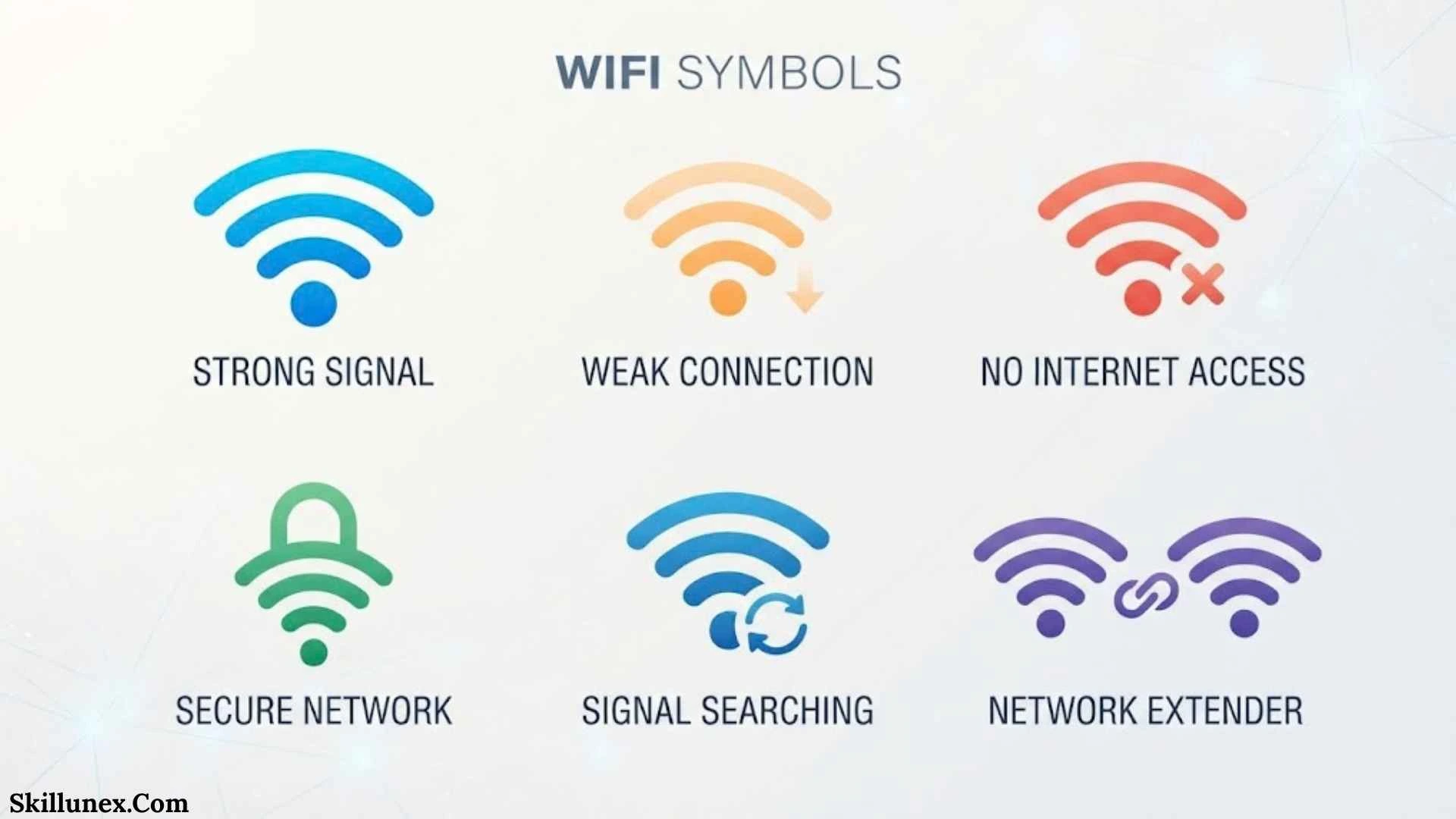
WiFi symbols are small but useful indicators that help you understand what is happening with your wireless connection. You can find them on smartphones, laptops, tablets, smart TVs, routers, printers, and many other connected devices. A simple WiFi icon can tell you whether your device is connected, whether the signal is strong, or whether you need to fix a network problem.
When I look at a WiFi symbol, I can often understand the basic connection status without opening the network settings. You can do the same by learning what the different lines, locks, arrows, X marks, and warning symbols mean.
However, WiFi symbols are not completely standardized.Android, iPhone, Windows, macOS, Samsung, Google Pixel, routers, and other manufacturers may use slightly different icons.Therefore, the meaning of a particular symbol can depend on the device displaying it.
This complete guide explains the most common WiFi symbols, their meanings, signal-strength indicators, security icons, troubleshooting symbols, router lights, 2.4 GHz and 5 GHz indicators, and the difference between having a WiFi connection and having actual internet access.
Quick Answer: What Do WiFi Symbols Mean?
WiFi symbols generally show the status and strength of a wireless network connection. A normal WiFi icon usually means your device is connected to a wireless network, while fewer curved lines generally indicate a weaker signal.
Here are the most common meanings:
| WiFi Symbol or Indicator | Common Meaning |
| 📶 | WiFi or wireless connection |
| Full WiFi icon | Strong wireless signal |
| Partially filled WiFi icon | Moderate or weak signal |
| WiFi with lock | Password-protected network |
| WiFi with X | WiFi disconnected or unavailable |
| WiFi with ! | Connected to WiFi but internet access may be unavailable |
| WiFi with slash | WiFi disabled or unavailable |
| WiFi with arrows | Network activity or data transfer |
| WiFi with question mark | Connection or network identification issue |
| Blinking router WiFi light | Wireless activity on some routers |
| 2.4 GHz indicator | Device/network operating on the 2.4 GHz band |
| 5 GHz indicator | Device/network operating on the 5 GHz band |
These meanings are general, not universal. If you see an unfamiliar icon, your device’s network settings or manufacturer’s documentation can provide the exact meaning.
What Is a WiFi Symbol?
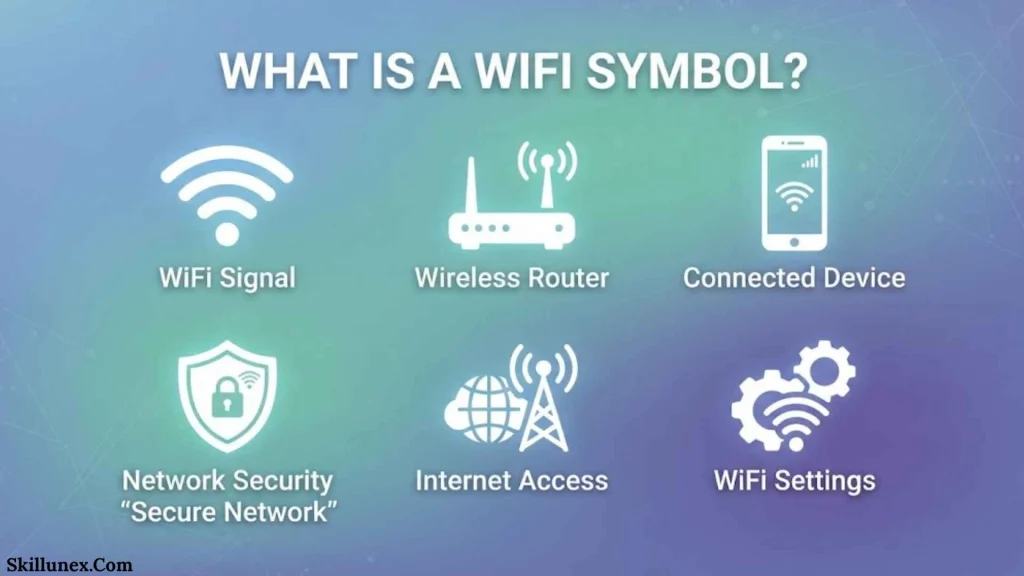
A WiFi symbol is a graphical indicator used to represent wireless network connectivity. The familiar WiFi logo normally consists of a small point or curved base with several curved lines extending upward.
Those curved lines are commonly used to provide a visual indication of wireless signal strength. The icon may become partially filled, change shape, or display an additional mark when the connection changes.
You can normally find WiFi symbols in several places:
- Smartphone status bars
- Laptop network menus
- Tablet settings
- Smart TV network settings
- Router panels
- Computer taskbars
- Network configuration screens
- Printer displays
- Smart-home devices
The purpose is simple: give you network information without requiring you to open a detailed diagnostic screen.
For example, if you walk away from your router and the WiFi symbol changes from a full icon to a weaker one, you can immediately see that your wireless signal has changed.
Common WiFi Symbols and Their Meanings
Not every device uses exactly the same symbols, but several designs appear frequently.
Standard WiFi Symbol
The standard WiFi symbol normally indicates that a device is connected to a wireless network or that WiFi functionality is active.
The familiar design contains curved lines that expand outward from a central point.
If your phone shows this icon after connecting to your home network, your phone has established a wireless connection with the router or access point.
However, a standard WiFi symbol doesn’t always mean that the internet is working. Your device can communicate with the router even when the router has lost its connection to your internet service provider.
Strong WiFi Signal Symbol
A WiFi icon with most or all of its arcs visible generally represents a stronger wireless signal.
You may see this when your device is relatively close to the router and there are few obstacles between them.
A strong signal can make activities such as browsing, video calls, streaming, and file transfers more reliable. However, signal strength is only one part of network performance.
Weak WiFi Signal Symbol
A partially filled WiFi icon usually indicates a weaker wireless signal.
You might see only one or two arcs instead of the complete icon.
This can happen when:
- You are far from the router.
- Thick walls are between your device and router.
- Metal objects interfere with the signal.
- Other wireless networks create interference.
- Your router has limited coverage.
- Your device has a weak wireless antenna.
- You are connected to a less suitable access point.
Moving closer to the router is one of the easiest ways to determine whether distance is causing the problem.
WiFi Symbol With a Lock
A WiFi symbol with a lock normally indicates a secured wireless network.
This means you need authentication, usually a password, before your device can connect.
You’ll commonly see this when viewing a list of nearby networks.
For example, your home network might appear with a lock because you have protected it with a WiFi password. A public or open network may not display the same lock indicator.
A lock tells you about network security or access requirements, not necessarily signal strength or internet speed.
WiFi Symbol With an X
A WiFi symbol with an X often indicates that your device isn’t connected to a usable WiFi network.
Depending on the operating system, it can mean:
- WiFi is turned off.
- Your device is disconnected.
- No suitable wireless network is available.
- The wireless adapter has encountered a problem.
- Your device is attempting to reconnect.
If you suddenly see an X, open your WiFi settings and check whether your normal network is still selected.
WiFi Symbol With an Exclamation Mark
A WiFi symbol with an exclamation mark often indicates a problem with internet access.
In many situations, your device is still connected to the WiFi router, but it cannot reach the internet normally.
For example, your phone may connect successfully to your home router. The router then loses its connection to your ISP. Your phone remains connected to WiFi, but online services stop working.
That’s why you should distinguish between:
Device → WiFi router
and
WiFi router → Internet
The first connection can work while the second one fails.
WiFi Symbol With a Slash
A WiFi icon with a slash can indicate that wireless networking is disabled or unavailable.
The exact design differs between devices.
If you see this symbol, check whether you accidentally turned WiFi off through:
- Quick Settings
- Control Center
- Network settings
- Airplane mode
- Hardware wireless controls
If WiFi is enabled but the symbol remains, restarting the device can help determine whether the problem is temporary.
WiFi Symbol With a Question Mark
A WiFi symbol with a question mark may indicate that your device needs additional information or cannot properly establish a connection.
The exact meaning varies by operating system.
Possible causes include:
- Authentication requirements
- An incomplete connection
- A network the device cannot properly identify
- Captive portal requirements
- Temporary network problems
Public WiFi networks can sometimes require you to open a browser and accept terms before internet access becomes available.
WiFi Symbol With Arrows
Some devices display arrows near a WiFi symbol to show network activity.
The arrows can indicate that information is moving between your device and the network.
Depending on the device, they may represent:
- Uploading data
- Downloading data
- Sending information
- Receiving information
- General network activity
Don’t assume that every arrow design has the same meaning. Manufacturers can use different visual systems.
How WiFi Signal Strength Symbols Work
WiFi signal symbols are designed to give you a quick visual indication rather than an exact measurement.
A typical icon may show several levels:
| Visual Level | General Interpretation |
| Full icon | Strong signal |
| Three levels | Good signal |
| Two levels | Moderate signal |
| One level | Weak signal |
| Empty/disconnected | Little or no usable connection |
The important point is that these are visual categories, not universal measurements.
Your phone might display three bars while another device in exactly the same location displays two. That doesn’t necessarily mean one device is faulty.
Different manufacturers can use different thresholds for deciding when to display each level.
Does a Full WiFi Symbol Mean Fast Internet?
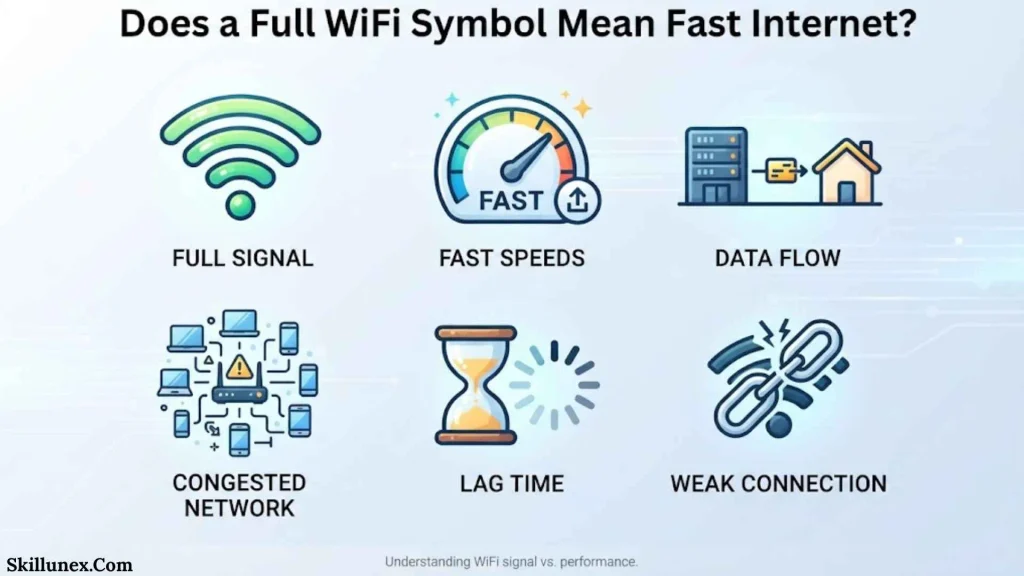
No. This is one of the most important things to understand about WiFi symbols.
A full WiFi symbol generally indicates a strong wireless connection between your device and the access point. It does not guarantee that your internet connection is fast.
Your actual internet performance can depend on:
- Internet plan speed
- ISP performance
- Router performance
- Network congestion
- WiFi interference
- Device hardware
- Server response time
- Distance from the router
- Number of connected devices
- Wired connection between your router and ISP equipment
For example, you could have a full WiFi icon while your internet service is temporarily slow.
This is why I wouldn’t diagnose an internet-speed problem from the WiFi icon alone. You should also test the connection itself.
WiFi Signal Strength vs Internet Speed
These two concepts are often confused.
WiFi signal strength describes the wireless connection between your device and the router or access point.
Internet speed describes how quickly data can travel through your internet connection.
Imagine that your phone has a strong connection to your home router. Your phone can communicate with the router easily, but your ISP’s network is experiencing congestion.
Your WiFi symbol can still look excellent even though websites load slowly.
Conversely, your internet service might be very fast, but your device is far from the router and has a poor WiFi connection.
That’s why you should consider both sides of the connection.
WiFi Symbols on Smartphones
Smartphones display WiFi symbols prominently because users frequently switch between WiFi and mobile networks.
The icon normally appears near the top of the screen.
You may see changes when you:
- Connect to WiFi.
- Disconnect from WiFi.
- Move away from the router.
- Move closer to the router.
- Lose internet access.
- Switch networks.
- Turn WiFi off.
- Enable airplane mode.
Your phone may also display additional mobile-network indicators alongside the WiFi icon.
WiFi Symbols on Android
Android devices can use different WiFi icons depending on the Android version and manufacturer.
Samsung, Google Pixel, Motorola, Xiaomi, OnePlus, and other brands may present slightly different designs.
Common indicators include:
- Connected WiFi
- Weak WiFi
- Secured network
- No internet
- WiFi disabled
- Network activity
- Connection warnings
If you’re unsure about an Android symbol, open Settings → Network & internet or the equivalent WiFi settings on your device.
The exact menu name can vary by manufacturer.
WiFi Symbols on iPhone
iPhones use the familiar WiFi symbol to indicate wireless connectivity.
You can generally find WiFi controls through Settings → Wi-Fi, where you can view available networks and identify the network your iPhone is currently using.
If your WiFi icon disappears, your iPhone may no longer be connected to a wireless network.
However, the absence of the WiFi icon doesn’t necessarily mean you have no internet connection. Your phone may be using cellular data instead.
WiFi Symbols on Windows
Windows uses network icons to communicate the current connection state.
The taskbar network area can show a wireless icon when you’re connected through WiFi.
Depending on the Windows version and connection state, you may see different indicators for:
- Connected WiFi
- Available networks
- No internet
- Disconnected network
- Ethernet
- Airplane mode
- Network problems
If the WiFi icon changes unexpectedly, open the network panel and check the connection details.
Windows can also provide troubleshooting information when it detects a network problem.
WiFi Symbols on Mac
Mac computers display the WiFi status through the menu bar and network settings.
A normal WiFi icon generally indicates a wireless connection. The visual strength indicator can change depending on the current wireless signal.
You can open System Settings → Wi-Fi to see available networks, connection status, and other wireless options.
If your Mac shows a strong WiFi icon but internet access is slow, test the internet separately rather than assuming the WiFi signal is the problem.
WiFi Symbols on Smart TVs and Other Devices
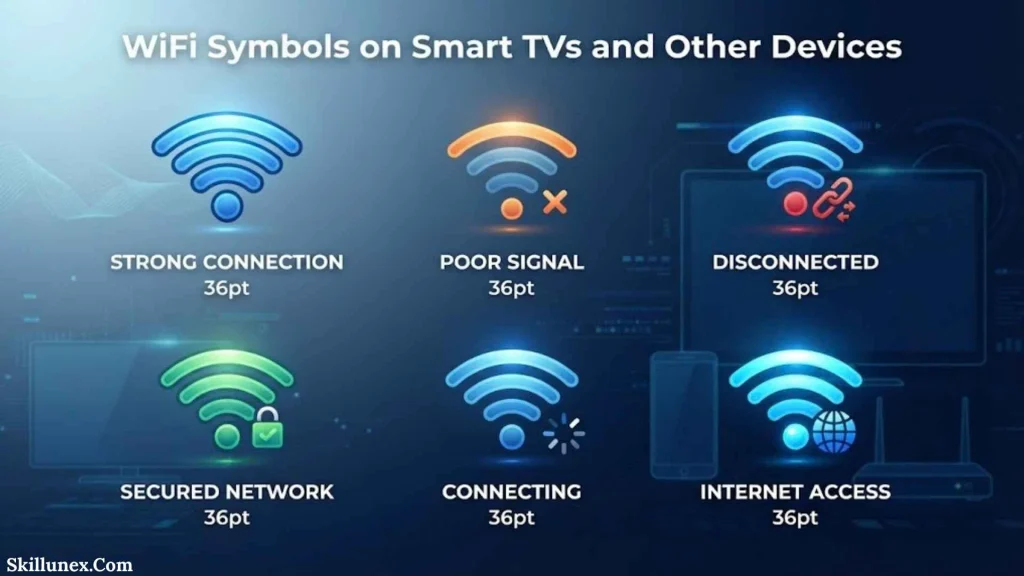
WiFi symbols aren’t limited to phones and computers.
You’ll also find them on:
- Smart TVs
- Game consoles
- Streaming devices
- Printers
- Security cameras
- Smart speakers
- Smart thermostats
- Home appliances
- Smart-home hubs
A smart TV, for example, might show a WiFi icon while streaming. If the symbol changes or disappears, the television may have lost its wireless connection.
Because manufacturers use different icons, always consider the device’s network settings when interpreting an unfamiliar symbol.
WiFi Router Symbols and Lights
Routers often use LEDs rather than the exact WiFi symbol found on smartphones.
A typical router can include indicators for:
- Power
- Internet/WAN
- WiFi
- LAN/Ethernet
- WPS
- 2.4 GHz
- 5 GHz
The exact indicators depend on the router model.
Power Light
The power indicator tells you whether the router is receiving electrical power.
If it is completely off, check the power adapter and electrical outlet before troubleshooting WiFi.
Internet or WAN Light
The Internet or WAN indicator relates to the router’s connection to the upstream internet service.
If WiFi is working but this indicator shows a problem, your device may still connect to the router while having no internet access.
WiFi Light
A WiFi light usually indicates that the router’s wireless radio is active.
On some models, a blinking WiFi light can indicate wireless traffic.
However, blinking patterns aren’t universal. Always check the documentation for your specific router.
LAN or Ethernet Light
LAN indicators usually correspond to wired Ethernet connections.
A light may appear when an Ethernet cable connects the router to a computer, game console, network switch, or another wired device.
2.4 GHz and 5 GHz WiFi Symbols
Modern WiFi routers commonly support multiple frequency bands.
The two familiar bands are 2.4 GHz and 5 GHz.
Some newer equipment also supports 6 GHz through newer WiFi generations, but whether you can use it depends on both your router and device.
2.4 GHz WiFi
The 2.4 GHz band generally provides longer range than 5 GHz and can work better through some obstacles.
However, this band is also commonly used by many other household wireless devices and networks, which can contribute to congestion.
5 GHz WiFi
The 5 GHz band can provide higher performance at shorter distances under suitable conditions.
Its effective range is generally shorter than 2.4 GHz, especially through walls and other obstacles.
If your router offers separate network names, you may see something such as a normal network name and another version identifying the 5 GHz band.
6 GHz WiFi
WiFi devices that support 6 GHz can use an additional band with more available spectrum in supported regions and equipment.
However, 6 GHz generally has a shorter effective range than lower-frequency bands and can be more affected by physical obstructions.
Therefore, a device displaying a particular WiFi band doesn’t automatically mean that one band is always better for every location or task.
Why Does My WiFi Symbol Keep Changing?
Your WiFi symbol can change because wireless conditions aren’t fixed.
The signal between your device and router can change as you move around your home.
Common reasons include:
Distance
Wireless signal strength generally decreases as you move farther from the access point.
If you walk from the room containing the router to a distant room, the icon may show fewer signal levels.
Walls and Floors
Physical structures can weaken wireless signals.
Concrete, brick, metal, thick walls, floors, and other obstacles can have a greater effect than lightweight interior partitions.
Wireless Interference
Nearby wireless networks and other radio-frequency sources can affect network performance.
This is particularly relevant in apartments, offices, schools, and other places where many networks operate close together.
Network Congestion
Multiple devices can use the same wireless network at the same time.
Streaming, cloud backups, downloads, gaming, video calls, and other activities can increase network traffic.
Roaming Between Access Points
If your home uses multiple access points or a mesh WiFi system, your device may move between access points as you travel.
During this process, the displayed signal level can change.
Why Is My WiFi Symbol Weak?
A weak WiFi symbol doesn’t necessarily mean your internet service is bad.
The most common reasons include:
- You are too far from the router.
- Walls are blocking the signal.
- The router is positioned poorly.
- There is wireless interference.
- Your device has limited WiFi reception.
- Your network uses an access point that is too far away.
- The router or access point needs attention.
The easiest test is to move your device closer to the router.
If the WiFi symbol becomes stronger, distance or physical obstacles are likely contributing to the problem.
How to Fix a Weak WiFi Symbol
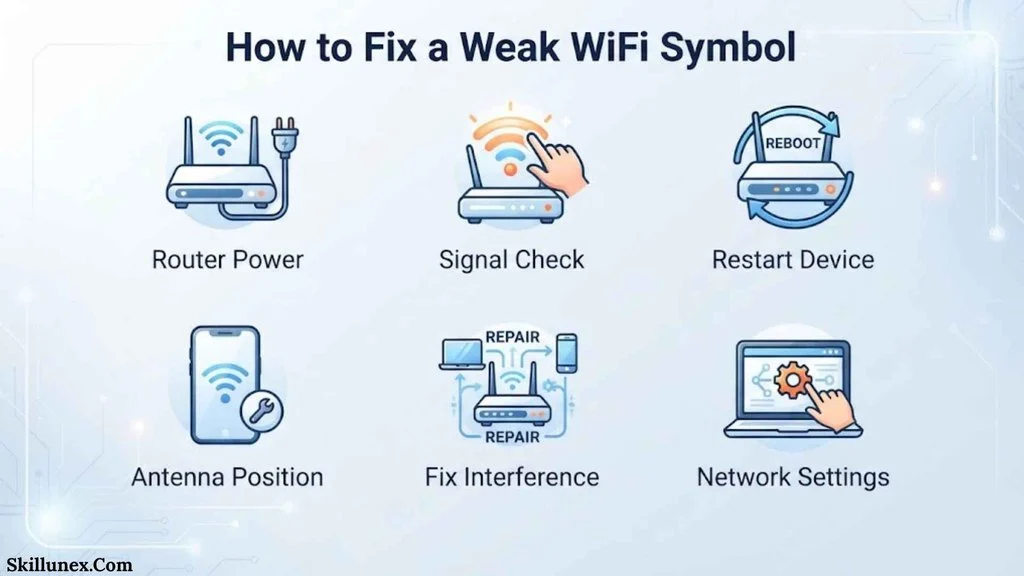
You can work through several troubleshooting steps before replacing your router or other equipment.
Move Closer to the Router
Start with the simplest test.
Move your device closer to the router and watch the WiFi symbol.
If the signal improves significantly, the problem may be related to coverage rather than your internet service.
Place the Router in a Better Location
Router placement can affect wireless coverage.
A router generally works better when it isn’t hidden inside a cabinet, surrounded by large objects, or placed at an extreme edge of your home.
A more central and open position can help provide more consistent coverage.
Restart the Router
Temporary software or connection problems can sometimes be resolved by restarting the router.
Turn it off using the appropriate procedure, wait for it to shut down, and then turn it back on.
Allow it enough time to reconnect before testing your devices.
Restart Your Device
The problem may exist on your phone, laptop, tablet, or other device rather than the router.
Restarting your device can clear temporary network-state problems.
Forget and Reconnect to WiFi
If your device repeatedly struggles to connect, you can remove the saved network and reconnect.
You’ll need to enter the WiFi password again.
This can help when saved connection information has become outdated or corrupted.
Check Other Devices
Test another phone, laptop, or tablet.
If only one device has a weak signal, investigate that device.
If every device experiences the same problem in the same location, investigate the router, access point, placement, or broader network.
Test Different Locations
Move around your home and compare the WiFi symbol.
If the connection is strong near the router but weak in one particular room, you likely have a coverage issue.
If the signal is weak everywhere, the router or device may require further investigation.
Reduce Interference
Move the router away from potential sources of interference and avoid placing it behind large metal objects or inside enclosed spaces.
In busy wireless environments, selecting an appropriate WiFi band or channel may also help.
Modern routers often manage channel selection automatically, so manual changes aren’t always necessary.
Consider a Mesh WiFi System
If your home is large or has difficult coverage areas, a mesh WiFi system can provide multiple access points.
Instead of relying on one router to cover the entire property, multiple nodes distribute wireless coverage.
However, adding more equipment isn’t always the first solution. I would first identify whether the problem is actually WiFi coverage.
What If WiFi Is Strong but the Internet Doesn’t Work?
This is a common situation.
Your device can have a strong WiFi signal while having no internet access.
Try these steps:
- Check another device.
- Check the router’s Internet/WAN indicator.
- Restart the router.
- Test a website or another online service.
- Check whether your ISP is experiencing an outage.
- Confirm that the problem isn’t limited to one application.
- Test the device using another network if possible.
If every device connected to the same router loses internet access, the issue may be upstream of your device.
If only one device has the problem, investigate that device’s network configuration.
WiFi Symbol vs Internet Symbol
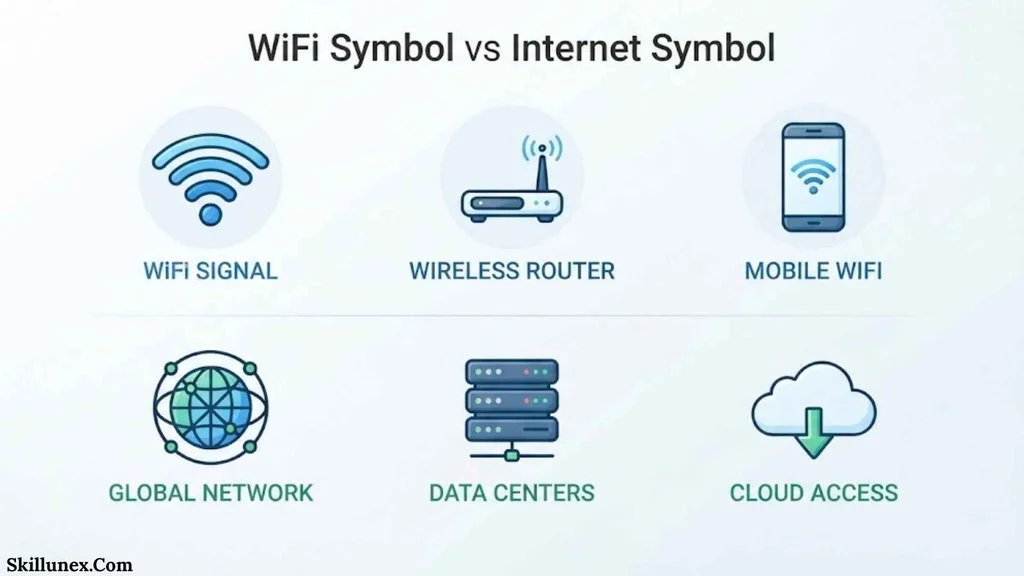
The WiFi icon and internet connection are related but different.
Think of your network as a two-part journey:
Your device → WiFi router → Internet
The WiFi symbol primarily represents the first part.
The internet connection depends on the second part.
For example, your laptop can connect perfectly to your router while the router has no connection to your ISP.
In that situation:
WiFi connection = Working
Internet connection = Not working
Understanding this difference can save you a lot of unnecessary troubleshooting.
WiFi Symbol vs Mobile Data Symbol
On smartphones, WiFi and mobile data are separate connection methods.
A WiFi symbol generally indicates that your phone is using or connected to a wireless network.
A cellular signal indicator represents your connection to your mobile network.
If WiFi becomes unavailable, your phone may use cellular data depending on your settings.
This is why you might still be able to browse the web after the WiFi icon disappears.
How to Read WiFi Symbols More Accurately
Don’t rely on the icon alone when diagnosing a network problem.
Use the symbol as your first clue, then check additional information.
For example:
Full WiFi + slow internet
Possible issue: ISP, router performance, congestion, or server-side problem.
Weak WiFi + slow internet
Possible issue: wireless coverage or interference.
Full WiFi + no internet
Possible issue: router-to-ISP connection.
WiFi X
Possible issue: device isn’t connected to a wireless network.
WiFi lock
Likely indicates that the network requires authentication.
This approach gives you a much clearer picture than treating every WiFi symbol as an internet-speed indicator.
WiFi Symbols and Security
The lock symbol is particularly useful when you’re choosing a wireless network.
A lock usually means that the network requires authentication.
However, you should still be careful when connecting to public WiFi.
A password-protected network isn’t automatically trustworthy simply because it has a lock icon.
When using public networks, avoid sharing sensitive information unless you’re confident that your connection and security practices are appropriate.
For your home network, use a strong, unique WiFi password and keep your router firmware updated when updates are available.
Why WiFi Symbols Differ Between Devices
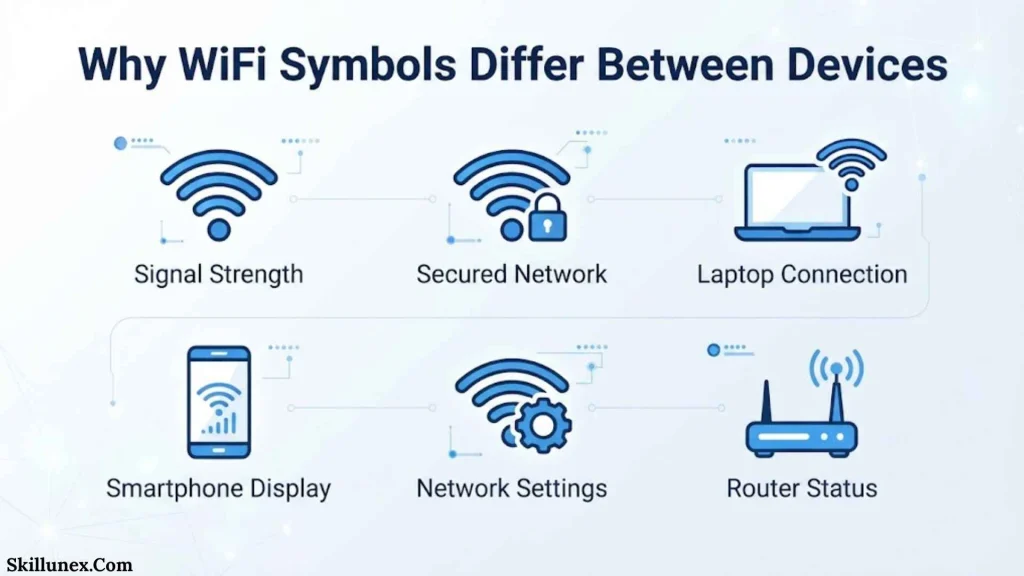
You may notice that your phone, laptop, and router don’t show identical WiFi symbols.
That’s normal.
Manufacturers create their own user interfaces, and operating systems use different visual conventions.
For example:
- Android manufacturers can customize system icons.
- iOS has its own status indicators.
- Windows uses its own network interface.
- macOS uses Apple’s network indicators.
- Router manufacturers create their own LED systems.
Therefore, don’t assume that a particular icon has exactly the same meaning everywhere.
The general concept may be similar, but the exact interpretation can vary.
WiFi Symbols Cheat Sheet
Use this quick reference when you need to identify a common icon.
| Symbol/Status | What It Usually Means | What You Can Check |
| 📶 | Connected to WiFi | Signal level |
| Full 📶 | Strong wireless signal | Internet speed separately |
| Low 📶 | Weak wireless signal | Distance and obstacles |
| 🔒 + WiFi | Secured network | Network password |
| WiFi + X | Disconnected/unavailable | WiFi settings |
| WiFi + ! | Limited/no internet | Router and ISP |
| WiFi + slash | WiFi disabled/unavailable | Wireless settings |
| WiFi + ? | Connection needs attention | Network details |
| WiFi + arrows | Data/network activity | Device-specific meaning |
| 2.4 GHz | Connected/operating on 2.4 GHz | Range and congestion |
| 5 GHz | Connected/operating on 5 GHz | Distance and performance |
| 6 GHz | Supported connection on 6 GHz | Device and router compatibility |
Remember that the icons in this table are simplified representations. Your actual device may use a different visual design.
Frequently Asked Questions
What is the WiFi symbol?
The WiFi symbol is an icon that represents wireless network connectivity. It usually consists of a central point or base with curved lines above it.
What do the lines on the WiFi symbol mean?
The curved lines generally provide a visual indication of wireless signal strength. More visible sections usually indicate a stronger signal, although the exact thresholds vary by device.
What does a WiFi symbol with a lock mean?
A lock usually means that the WiFi network is secured and requires a password or another form of authentication.
What does a WiFi symbol with an exclamation mark mean?
It commonly means that your device is connected to the WiFi network but has limited or no internet access. The exact behavior depends on the device and operating system.
What does a WiFi symbol with an X mean?
A WiFi icon with an X commonly indicates that your device is disconnected from WiFi, WiFi is unavailable, or the wireless connection needs attention.
Why is my WiFi symbol weak but my internet still works?
A weak WiFi symbol indicates reduced wireless signal strength, but your connection may still be strong enough for normal browsing and other activities. Signal strength and internet speed are not the same thing.
Does a full WiFi symbol mean I have fast internet?
No. A full WiFi symbol usually means your device has a strong wireless connection to the router. Your actual internet speed also depends on your ISP, router, network traffic, and other factors.
Why does my WiFi symbol keep changing?
The symbol can change when you move around, encounter walls or other obstacles, experience interference, connect to different access points, or experience changing wireless conditions.
What should I do when my WiFi symbol is weak?
Start by moving closer to the router. If the signal improves, investigate router placement, obstacles, interference, or coverage. You can also restart the router and test another device.
Can I have WiFi without the internet?
Yes. Your device can be connected to a WiFi router even when that router has lost its connection to the internet. This is why a WiFi icon can remain visible while websites and online services don’t work.
What is the difference between 2.4 GHz and 5 GHz WiFi?
2.4 GHz generally offers greater range, while 5 GHz can provide higher performance over shorter distances under suitable conditions. Actual performance depends on your equipment, environment, interference, and network configuration.
Why does my phone show WiFi but apps don’t work?
Your phone may be connected to the router while the router has no internet access. Check another device on the same network to determine whether the problem affects the entire network or only your phone.
Conclusion
WiFi symbols provide a quick visual way to understand your wireless connection. The standard WiFi icon usually represents a wireless connection, while the number of visible sections can provide a general indication of signal strength.
You can also encounter symbols with a lock, X, exclamation mark, slash, question mark, or arrows. Each can provide additional information about security, connectivity, or network activity, although the exact meaning depends on your device.
When I troubleshoot a WiFi problem, I don’t rely on the icon alone. I check the signal, test another device, compare different locations, and determine if the actual problem is WiFi connectivity or internet access. You can use the same approach to identify if the issue comes from your device, router, wireless coverage, or internet service.

I’m Adrian Holloway, a writer and researcher who enjoys exploring the stories, meanings, and interesting facts behind the subjects people search for every day. I’m especially interested in symbols, nature, lakes, places, and cultural topics that help readers understand the world from a different perspective.
I believe useful content should be simple, accurate, and enjoyable to read. When I research a topic, I focus on finding meaningful details and presenting them in a way that makes information easy to understand.
My goal is to create helpful articles that answer real questions while encouraging readers to discover something new with every visit.
Books by Adrian Holloway
The Language of Symbols: Meanings, Stories & Traditions
Hidden Wonders of Nature: Lakes, Landscapes & Discovery